Yes! Tripline can import GPX and KML files created by GPS devices and many popular mapping and fitness apps. We launched this feature on June 30, 2026.
NOTE: This is a Pro feature. If you don’t yet have a Pro subscription, now is the time! Go to Subscribe to create or upgrade your subscription.
To import a file:
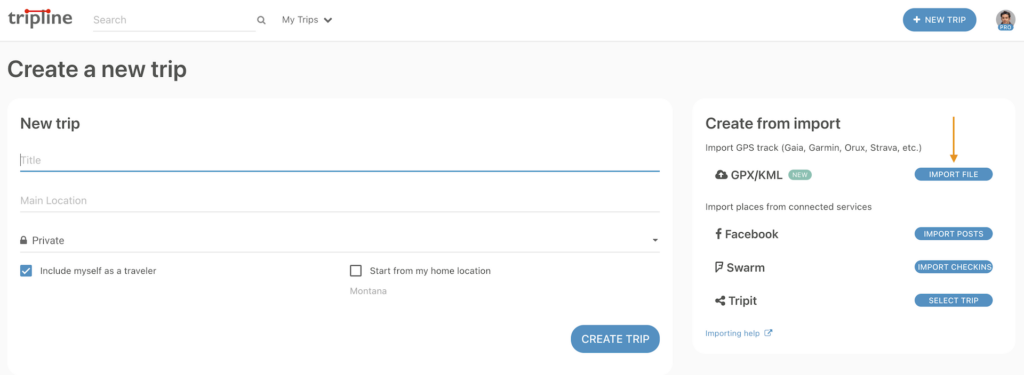
- Go to Create Trip.
- Under Create from import, click Import File.
- Drag and drop a GPX or KML file onto the upload area, or click to choose a file.
- Review the map preview and choose how you’d like to import the file.
- Click Create Trip.
Supported file types
Tripline currently supports:
- GPX (.gpx)
- KML (.kml)
If you have a KMZ file, you’ll need to unzip and get .kml files before uploading.
Import options
Depending on what’s contained in your file, Tripline may detect:
- Tracks
- Routes
- Waypoints
If multiple feature types are available, you can choose which one to import before creating your trip.
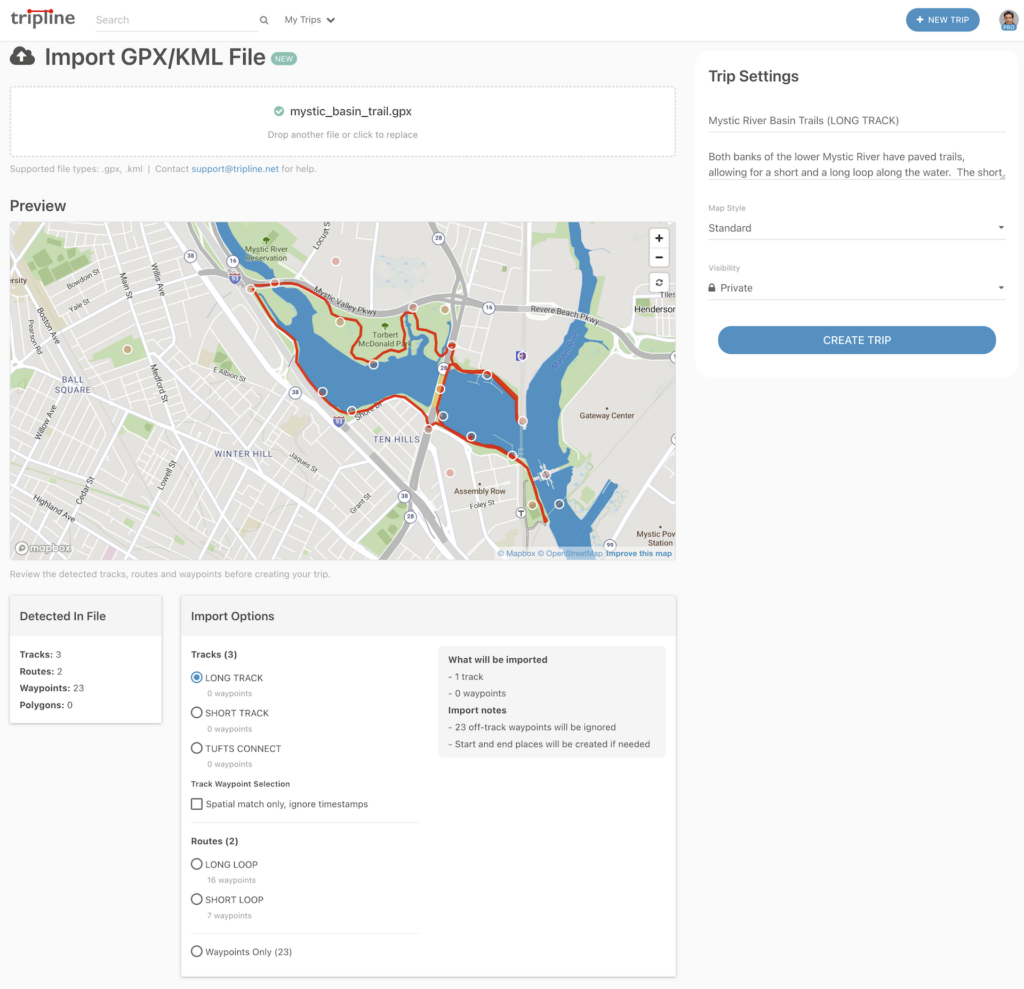
NOTE: When importing a track, if you select Spacial matching (ignore timestamps), the importer will ignore timestamps and use a spatial algorithm to select waypoints that are close to the path. Some off-track waypoints may be ignored. Use this option if you have a file with waypoints that were added after recording.
What gets imported?
Tripline imports the places and travel paths contained in your file whenever possible. The imported trip remains fully editable, so you can:
- Rename places
- Add descriptions and photos
- Reorder points, add new points (see note)
- Continue editing your trip just like any other Tripline trip
Importing into existing trips
If you want to import a GPS track into an existing trip:
- Go to the trip and click [EDIT MAP]
- Select the waypoint where you want to insert the track
- Open the dropdown on the right side of the waypoint block
- Select [Insert GPS Track]
- Follow the prompts
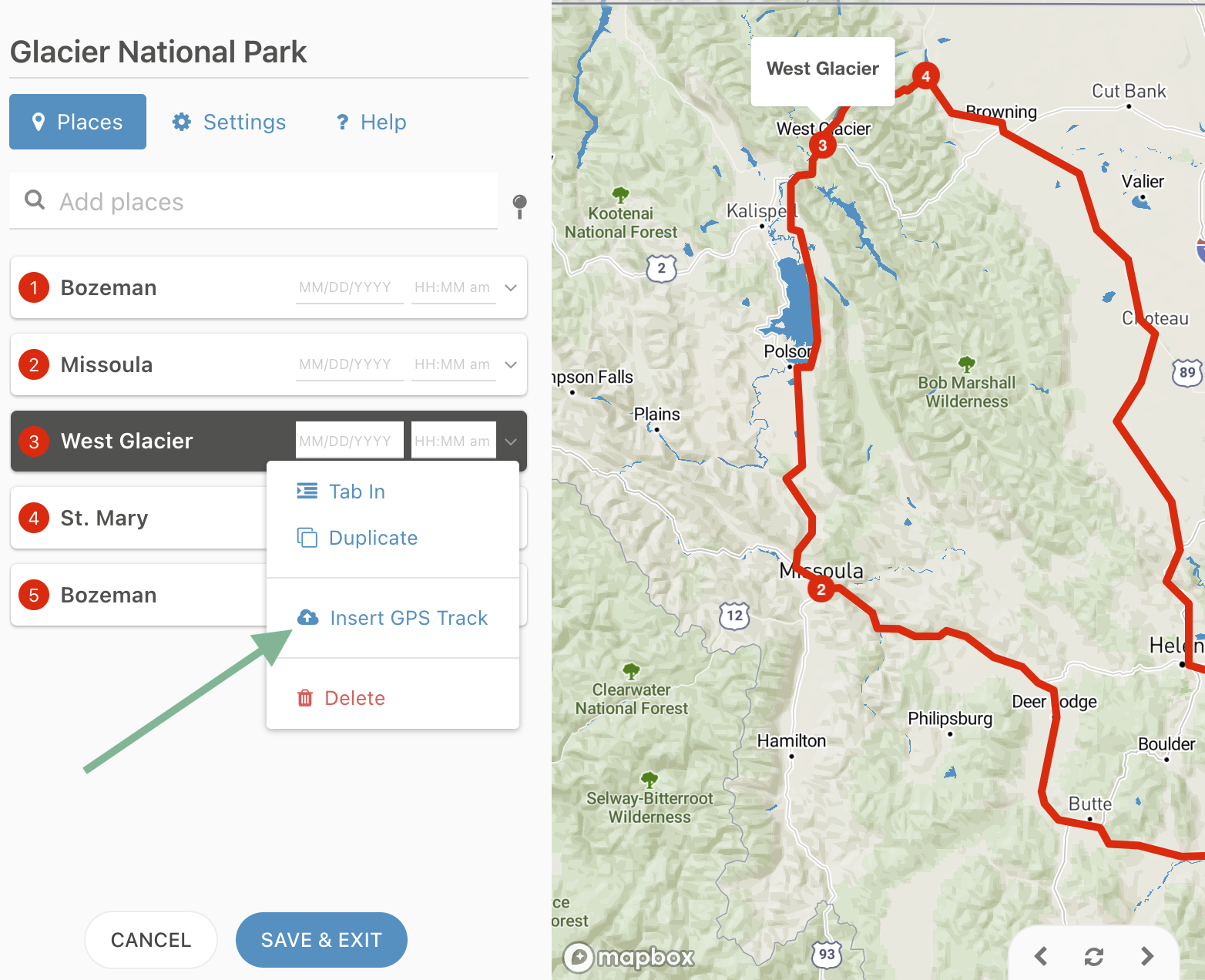
Your track (and embedded waypoints) will be imported and placed into your timeline. You can add multiple GPS tracks to a trip.
NOTE: We currently don’t display a preview map when inserting a track into an existing trip. This is for layout simplicity. The options work the same as when creating a new trip.
Adding new waypoints to imported tracks
If you’d like to add new waypoints on your imported track, click the point on the path where you’d like to add a new waypoint and choose [Split & Add Waypoint].
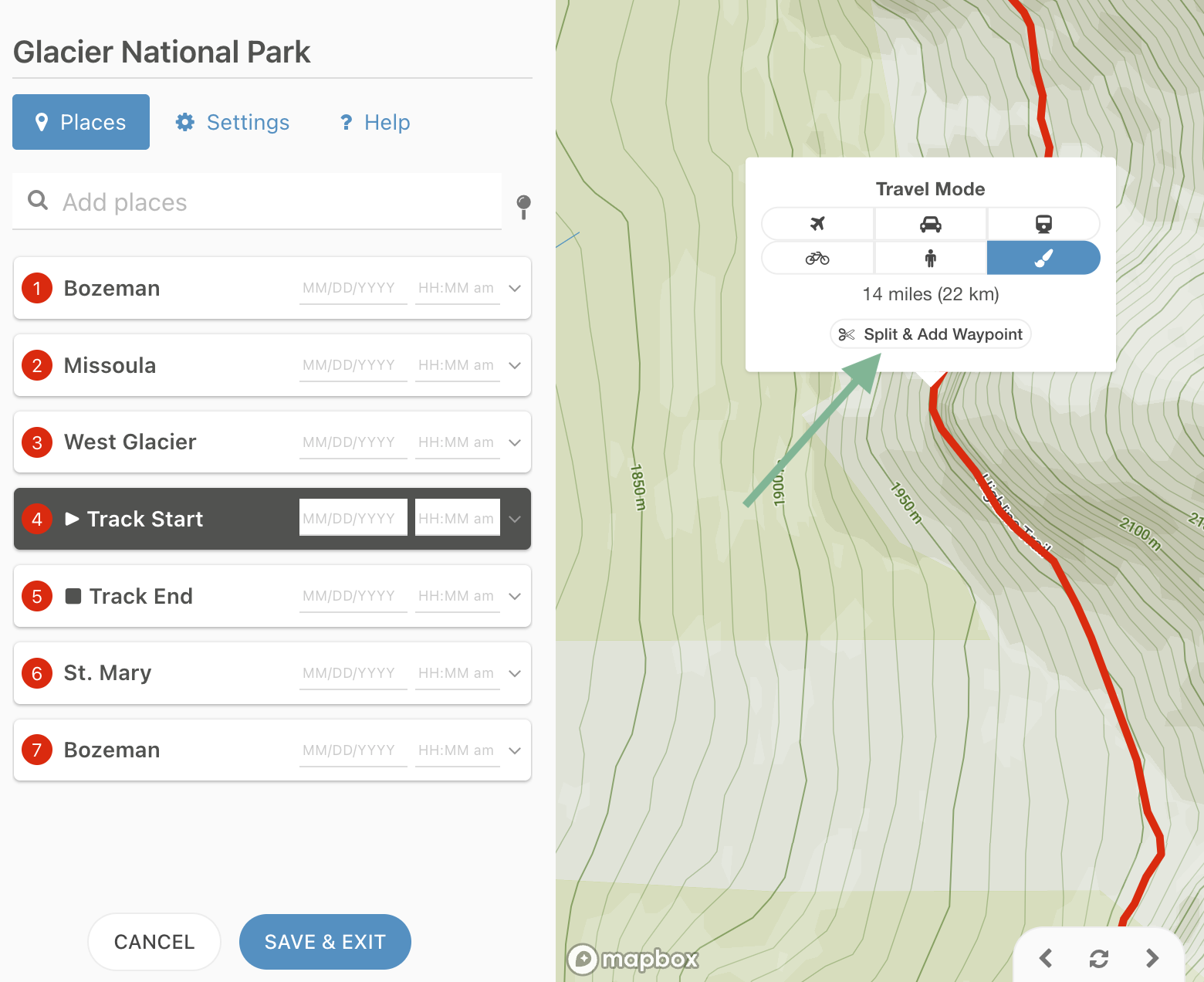
Tripline will add a new waypoint at the clicked point and preserve your imported track. For accuracy, we suggest zooming in before adding new points.
NOTE: You can delete added points and your original path will be preserved. However, if you reorder waypoints, your path may be replaced since the source track would no longer be valid.
Limitations
At this time:
- KMZ files are not yet supported. If you have a .kmz file, you’ll need to unzip it and import individual .kml files.
If you encounter a file that doesn’t import correctly, please contact support@tripline.net and, if possible, include the original GPX or KML file. It helps us improve compatibility with different GPS devices and applications.